
Admin panel
The admin panel is where an administrator runs a filex instance: storages, people, sign-in, plugins, settings and upkeep. It is served at /admin/ (the people who use the files have their own door, /drive/).
This page is the map: where every page of the panel lives in its menu, who is offered which page, how the menu works with a keyboard, a screen reader and on a phone, and how the panel's search finds a page, a setting or a record by its name. What each page does is in the page's own guide, linked from the table below.
The menu
The panel's navigation is a mega menu in the top bar. The Dashboard is a plain link at its start; every other page sits in one of four panels, each opened by its button and laid out in columns, with a short line under every page saying what it is for. Three panels hold what the instance HAS - its files, its people, its records - and one, Settings, holds every page that changes how it behaves. The bar reads Dashboard, Files & storage, People, Settings, Maintenance & records:
| Panel | Section | Pages |
|---|---|---|
| Files & storage | Files | Files (the file manager), File history, Shares, Trash, Tagged files, Duplicates (its cards are the whole report's totals, total_groups / total_copies / total_waste from GET /api/admin/duplicates, beside the 100 largest groups), Search index (its stats and rebuild; it links to the search settings on General) - see Sharing, Trash & versioning, Search |
| Apps | One row per installed app that has a screen of its own - see Apps. The section is not shown when no app has one. | |
| Storage | Storages, Connections, Sync runs, Replica, Usage & cost - see Storage, Protocols, Replication, Usage & cost | |
| People | People & access | Users, Groups, Roles, Folder access, Tenants - see Roles & permissions, Groups, RBAC & folder access, Multi-tenancy |
| Settings | General | General (the server's defaults - default language, sync interval, unfinished uploads, file cache, thumbnail cache upkeep - the thumbnail settings, the search settings and the mail server), Branding, Appearance (themes, the default folder view, the stylesheet), Multi-tenant mode, My tenant - see Configuration, Thumbnails, Multi-tenancy, Tenant self-service |
| Security & data | Identity providers, Sign-in security, Encryption, Protection - see SSO, LDAP, End-to-end encryption, Protection | |
| File processing & integrations | Archives, Plugins (with Install requests, the trusted stores and who sees the store screen), External services, Webhooks, Notifications (the history and the notification digest's defaults), API / MCP, AI assistant - see Archives, Storage plugins, Apps, OnlyOffice, Notifications & webhooks, MCP, AI assistant | |
| Maintenance & records | Maintenance & records | Queue, Tools, Audit log, Updates, About - see Updates |
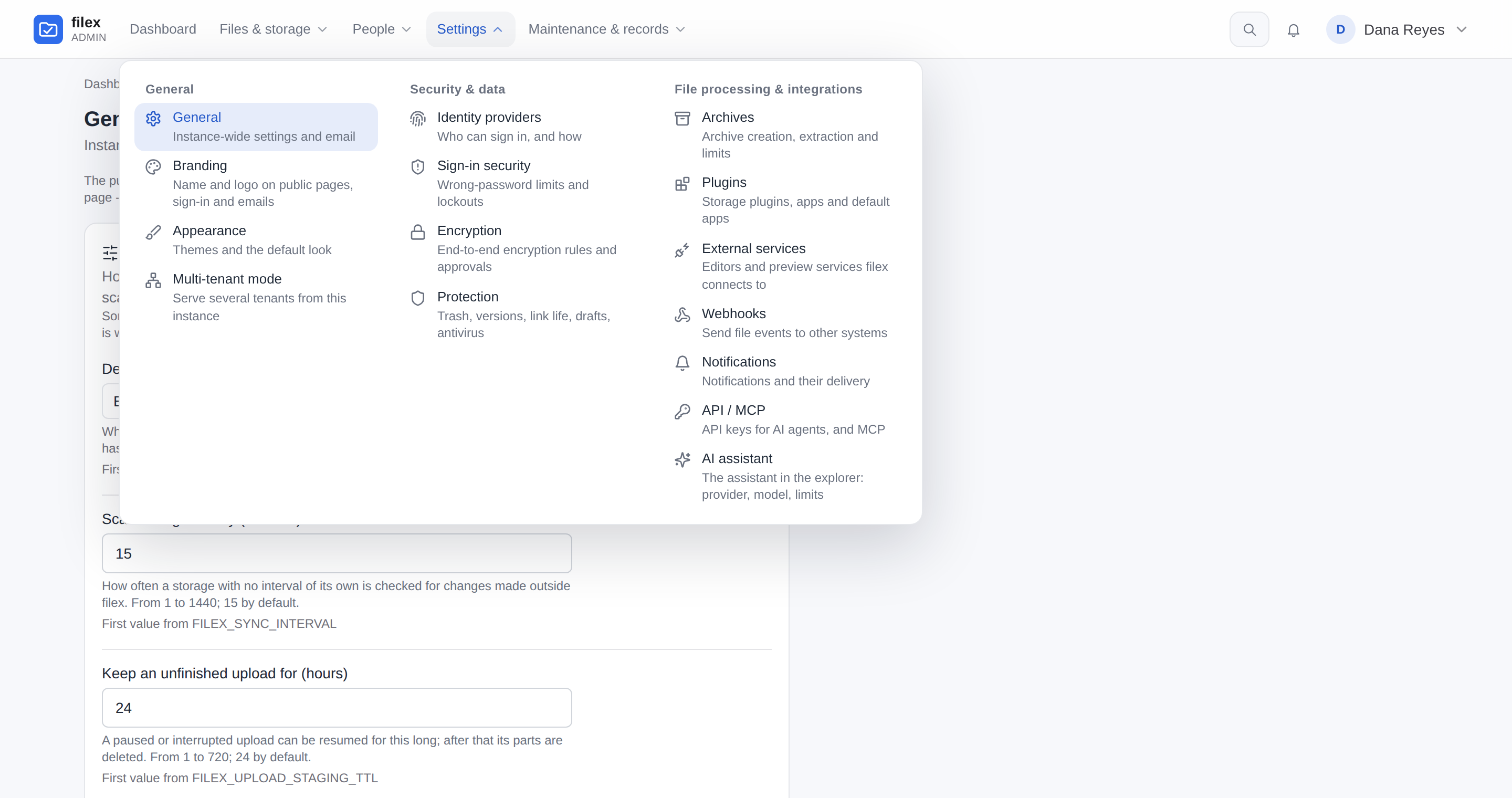
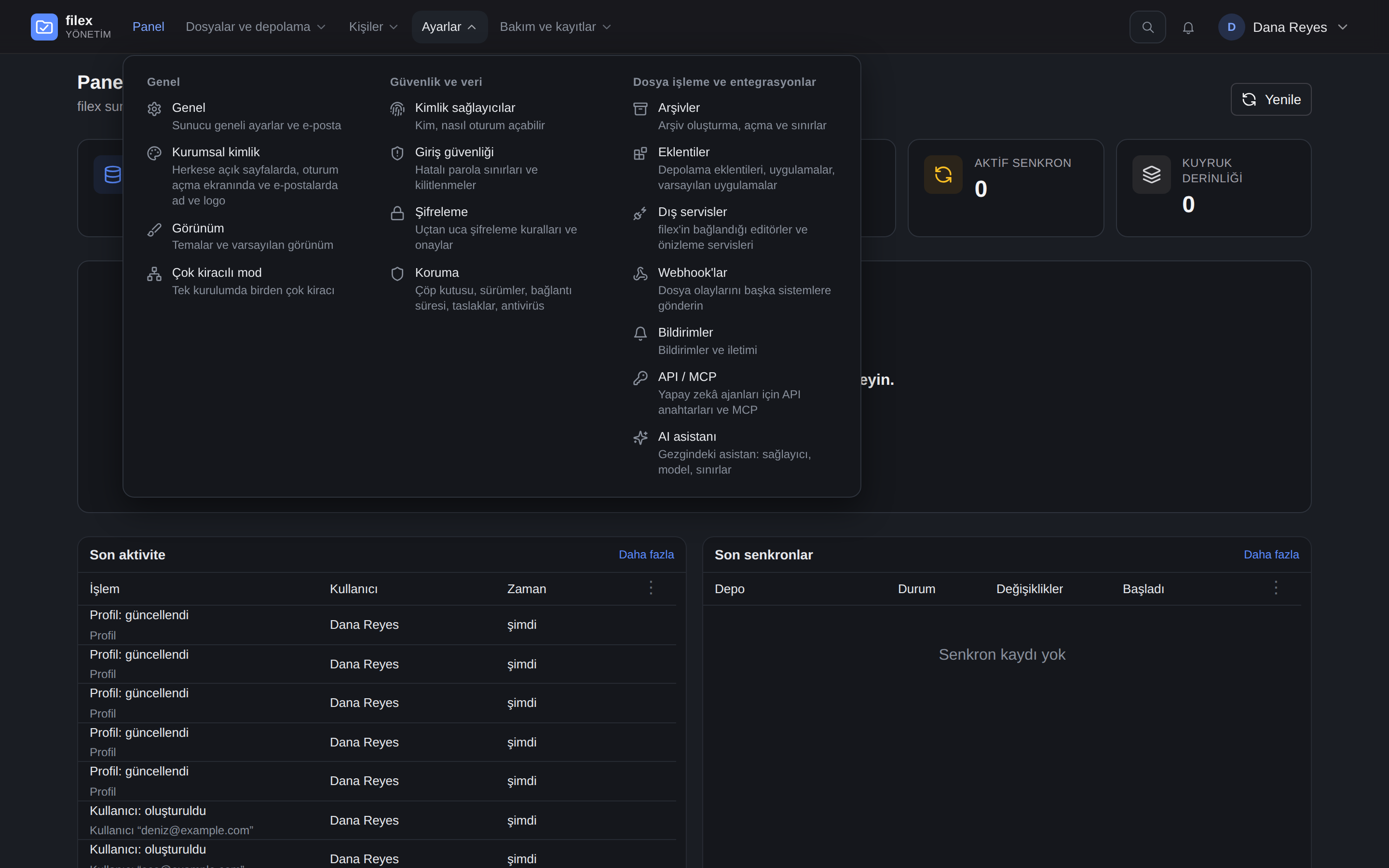
Every page is two clicks away: the panel's button, then the page. The page's own sub-pages (a storage's settings, a person's page, a file's versions) are reached from the page, as before.
Addresses did not change. The menu groups the pages; it did not move them. /admin/users, /admin/login-security, /admin/plugins?tab=defaults and every other link or bookmark from an earlier release opens the same page (the General page is /admin/settings). The other guides name a page as Admin → Page (for example Admin → Sign-in security, Admin → Plugins), or, for a page of the Settings panel, with the panel in front of it (Admin → Settings → External services); the page that was called Settings before 0.57 is always Admin → Settings → General. The table above has where each one sits.
Under the top bar, the trail names the section a page lives in, between the dashboard and the page: Dashboard › People & access › Users. The section is words, not a link - it is a heading in the menu, not a page. A step that says what the previous one says is said once: the General page's trail is Dashboard › General.
Who sees which page
The menu offers a person exactly the pages the panel would open for them - the same rule the server applies to each page's API:
An administrator of a single-tenant install, and the platform's own administrator on a multi-tenant one, sees every page.
A delegated administrator - an account given an
admin.*permission without the administrator role (Roles & permissions) - sees the pages that permission opens, and the file manager:Permission Pages admin.monitorDashboard, Sync runs, Usage & cost, Queue admin.usersUsers, Groups admin.grantsFolder access admin.sharesShares admin.auditAudit log On a multi-tenant install, Tenants is the platform operator's and My tenant is a tenant administrator's; a single-tenant install shows neither, and their addresses lead to the dashboard (Multi-tenancy).
A tenant's administrator is not offered the pages about the instance, whose every call the server refuses them (
403 supertenant_only) - on read and on write:Panel Pages a tenant's administrator is not offered Files & storage Search index, Replica, Usage & cost Settings General, Appearance, Multi-tenant mode, Identity providers, Sign-in security, Protection, Archives, Plugins, External services, Webhooks, AI assistant Maintenance & records Queue, Updates What they are offered works on their tenant: Files, File history, Shares, Trash, Tagged files, Duplicates, Storages, Connections, Sync runs; Users, Groups, Roles, Folder access; under Settings, Branding, My tenant (their own sign-in and domains), Encryption, API / MCP and Notifications - where they see their tenant's summary defaults, not the instance's history; and Tools, Audit log, About. The capability behind it is
caller_platform(true on a single-tenant install and for the supertenant's people).Multi-tenant mode is the administrator's who may configure the instance: every administrator of a single-tenant install, the platform operator of a multi-tenant one, never a tenant's administrator. It is the one page about tenants a single-tenant install shows, because it is where the mode is turned on.
An app's screen (the Apps section) is an administrator's.
The App store page (
/drive/app-store, 0.53) is not the panel's: it is filex's own page, beside My shares, for the people the store screen's settings choose (Plugins → Apps → Store screen: everyone, some roles or some groups, per tenant). It lists a trusted store's catalog and leaves requests on Plugins → Install requests; approving one opens the store review here, in the panel (Apps → The store screen). The desktop app opens the same page, under the same rule, in a window of its own (DESKTOP.md).
A section with nothing left in it is not drawn, and neither is a panel with no section left: a delegated administrator holding only admin.users sees no Dashboard link, Files & storage with Files alone, People with Users and Groups, and neither Settings nor Maintenance & records.
Keyboard and screen readers
The menu is a navigation landmark named Admin menu. Each panel button says whether its panel is open (aria-expanded) and which panel it opens; each section's list is labelled by its heading; the page being looked at is marked as the current page. The pages are ordinary links, so a middle click or Open in new tab works on every one of them.
| Key | On a panel button | Inside a panel |
|---|---|---|
| Enter / Space | opens or closes the panel | opens the page |
| ↓ | opens the panel and moves to its first page | the next page |
| ↑ | opens the panel and moves to its last page | the previous page; from the first page, back to the button |
| ← / → | the previous / next button (mirrored in right-to-left languages) | - |
| Home / End | the first / last button | the first / last page |
| Esc | closes the panel | closes the panel and returns to its button |
A panel opens on a click (or a key), never when the pointer passes over it. It closes when a page is chosen, on a click anywhere outside it, and when focus moves out of the menu.
On a phone
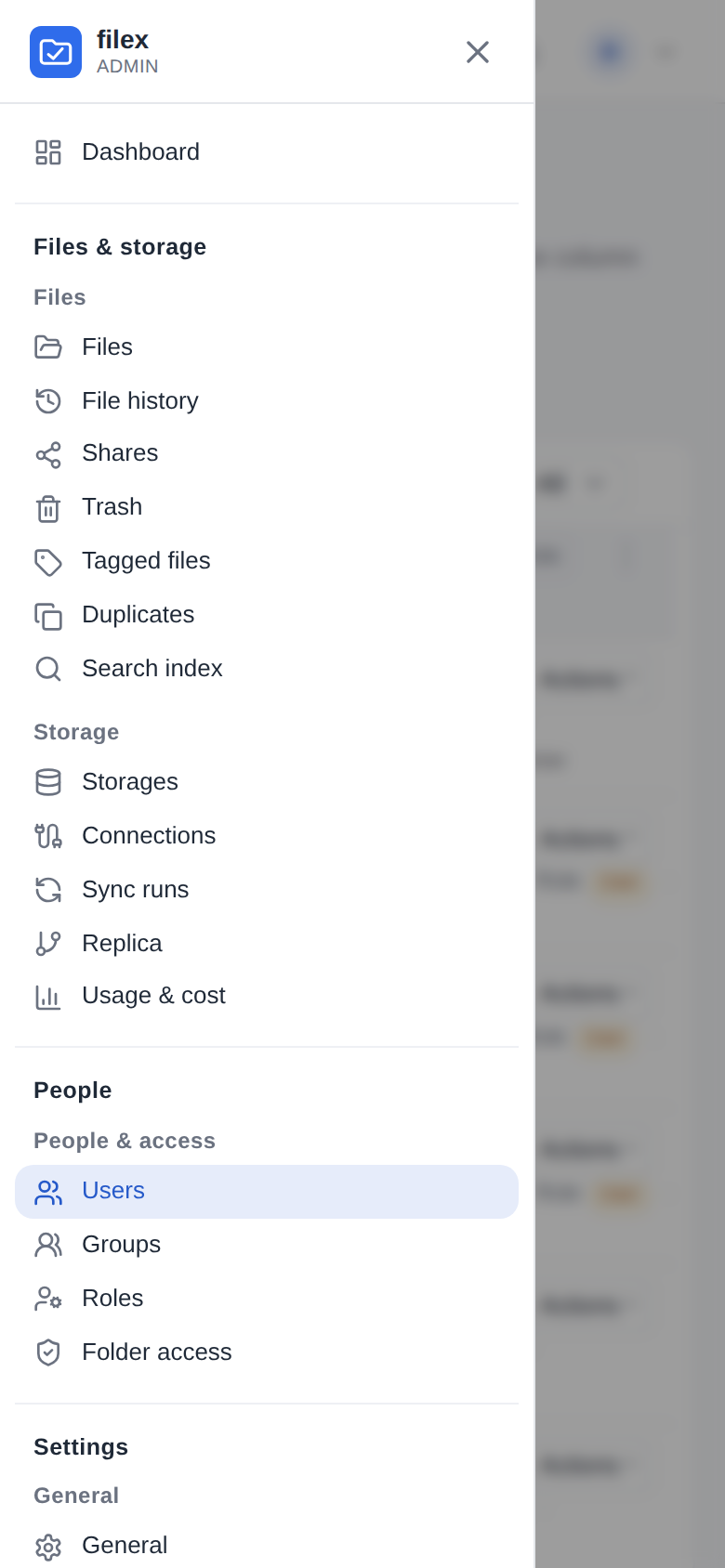
Below 1024 pixels wide the top bar has a Menu button instead, and a search button that opens the search over the whole window. The Menu button opens a drawer with the same pages as a list - a heading per panel, a smaller heading per section, and every section open - so a page is two taps away: Menu, then the page. The drawer opens scrolled to the page you are on, and closes when you choose one, tap outside it or press its close button.
Search
Beside the menu, the top bar has a search for the whole panel. Press it, or Ctrl+K (⌘K on a Mac - the explorer's palette key, so a key you remapped in the shortcut settings is the one that opens it), and type. The results come in groups:
| Group | What is found |
|---|---|
| Pages | every page of the menu, with the short line it has there, and the tabs that have an address of their own: Plugins → Apps, Identity providers → LDAP / Active Directory, Tools → Thumbnail repair |
| Settings | single settings by the name their page gives them - Trash retention, Require two-factor authentication, Trusted proxies, Email (SMTP), Trusted stores - each opening its page |
| Apps | the installed apps and what each does from the file menu, and the screens apps add to the menu |
| Users, Groups | people by name, email address or username; groups by name |
| API keys | keys by their name and the identities they act under. A key's value is never shown - filex keeps only its hash |
| Storages, Shares | storages by name; links by the file or folder they share, never by the link itself |
| Files | only on demand: without a prefix, the first three files whose name matches and a Search files row that searches every file |
A name is found in the interface's language and in English, and by its synonyms: LDAP finds Identity providers, 2FA the two-factor setting, SMTP the email settings. Turkish letters and capitals do not matter: kullanici finds Kullanıcılar, guvenlik finds Güvenlik. A group that holds a row NAMED what you typed comes first; otherwise pages and settings come before the records.
A prefix keeps one kind. The prefixes are listed under the results, and pressing one puts it in the field:
| Prefix | Finds |
|---|---|
file: | files and folders, everything the file search lets you open (file:rapor) |
user: | people |
app: | installed apps and their actions |
key: | API keys |
group: | groups |
storage: | storages |
setting: | single settings |
You find only what you may open. The pages and settings are the menu's own: a page the menu does not offer you is not found, and neither are its tabs or settings. People, groups, keys, apps, storages and shares come from the very lists their pages read, through the same permission: a delegated administrator holding admin.users finds people and groups and nothing else, and a tenant's administrator finds their own tenant's. The server's side is GET /api/admin/panel-search (BACKEND.md).
Recent searches. With the field empty, the search lists the last things you searched for - kept on the server for your account, so they are there in another browser and on your phone. The newest 20 are kept; the same words searched again move to the top. Remove one with its × (or Delete while it is selected), or all of them with Clear recent searches. They are yours alone: not in the audit log, and gone with the account.
| Key | In the search |
|---|---|
| Ctrl+K / ⌘K | opens it from anywhere in the panel - but not while you are typing in a field, where the key is the field's (as in the file manager) |
| ↓ / ↑ | the next / previous row (from the last back to the first) |
| Enter | opens the row - the first one when none is picked |
| Esc | closes the search and returns to the box |
| Delete | removes the selected recent search |
For a screen reader the field is a combobox: the rows are options in groups named by their headings, the selected row is announced as you move, and a polite status says how many rows there are.
On a wide screen the box shows the word Search and its key from 1536 pixels wide; narrower, beside the menu, the magnifier alone. On a phone it is a search button next to the Menu button, and it opens the search over the whole window, with a close button at the start of the field.